

How to generate a BigQuery schema to define column types manually?
The older BigQuery destination connectors allow defining the schema for the BigQuery destination table manually using JSON format. In the schema for each inserted column, we should define the mode (required or not), the name of the column, and its type.
You can still use the BigQuery schema autodetection mechanism. For this, keep the "Autodetect table schema" toggle turned ON:
To provide the schema manually in the wizard, turn OFF the "Autodetect table schema" toggle and enter the schema in the "Columns schema" field:
The simplest schema for 1 required column with the name "id" and type "Integer" looks like this:
[
   {
      "mode":"REQUIRED",
      "name":"id",
      "type":"INTEGER"
   }
]
Possible values for each attribute:
mode:
REQUIRED - for columns where the value cannot be empty (null)
NULLABLE - for columns where the value can be empty (null)
name - valid column name. A column name must contain only letters (a-z, A-Z), numbers (0-9), or underscores (_), and it must start with a letter or underscore. The maximum column name length is 300 characters. Read more details about validation for the name.
type - valid column type supported by BigQuery. Please read here the latest version of supported types. We also added below the most used types:
STRING - Variable-length character (Unicode) data (i.e. "Some string data")
DATE - A logical calendar date
INTEGER - Numeric values without fractional components (i.e. 55)
FLOAT - Approximate numeric values with fractional components (i.e. 12.64 (12,64))
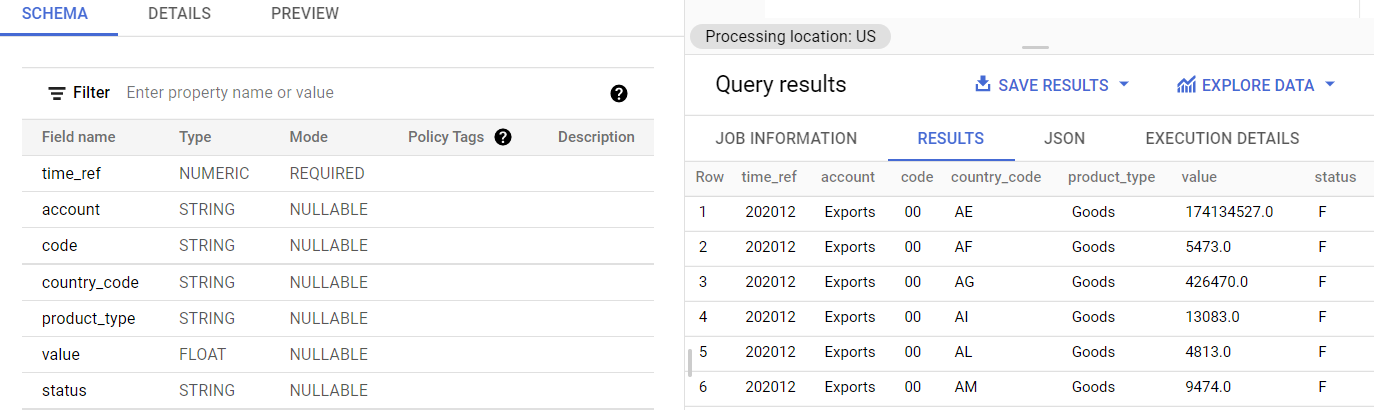
Please review our example below:
Source data: CSV
Defined schema:
Results in BigQuery:
Important notes:
1. Please ensure that the number of columns returned by the data source is the same. If the number of columns increases, the data flow execution fails as the schema is not appropriate. If the number of columns decreases, the data flow execution can fail the schema as invalid or data can be imported, but to the invalid columns.
2. If you want to add the "Last updated at" column to the results of import:
You need to define this column and put it first in the schema:
Last updated
Was this helpful?