> For the complete documentation index, see [llms.txt](https://docs.coupler.io/llms.txt). Markdown versions of documentation pages are available by appending `.md` to page URLs; this page is available as [Markdown](https://docs.coupler.io/troubleshooting/coupler.io-refused-to-connect.md).
# Coupler.io refused to connect
Fix the "Coupler.io refused to connect" error. Learn what causes connection issues with your browser or network and how to restore access to the platform.
This is a known issue related to the cookie settings of your browser or to the installed browser addons that are able to manage cookies.
***
#### Issue Overview
When you are using the Coupler.io add-on and click on the "Add" data flow button or "Edit" data flow button, our wizard opens, but it shows you the message:
```
www.coupler.io refused to connect
```
This issue can occur when using a common browser window or an incognito window.
***
#### To resolve the issue:
For proper functioning of the Coupler.io Add-on, your browser should allow the use of third-party cookies. To change the settings, follow the next steps according to the browser you use:
{% tabs %}
{% tab title="Google Chrome" %}
**The error:**
**Resolution:**
1. Navigate to Settings >> Privacy and Security >> Cookies and other site data.
2. Select one of the next options:
* **Allow all cookies** - with this option, Coupler.io will work in the common window of your browser and in Incognito mode also.
* **Block third-party cookies in Incognito -** with this option, Coupler.io will work in the common window of your browser, but will not work in Incognito mode.
* **Block third-party cookies** - with this option, you will block all third-party cookies, so additional settings are needed for Coupler.io in the *"Customized behaviors" section:*
* Scroll to the "Sites that can always use cookies" list.
* Click "Add".
* Paste " [*https://www.coupler.io"*](https://www.coupler.io/)*.*
* Check "Including third-party cookies on this site".
* Click "Add".
* Paste *"*[*https://docs.google.com*](https://docs.google.com/)*".*
* Check "Including third-party cookies on this site".
* Click "Add".
* As result you should have next settings:
*Allowance for* [*https://www.coupler.io*](https://www.coupler.io/) *is needed to allow the web version to work.*\
\&#xNAN;*Allowance of* [*https://docs.google.com*](https://docs.google.com/) *is needed to allow the addon to work in Google Spreadsheets.*
3. Restart the browser & reopen the addon.
{% endtab %}
{% tab title="Mozilla Firefox" %}
**The error:**
**Resolution:**
1. Navigate to Settings -> Privacy and Security -> Enhanced Tracking Protection.
2. Select one of the options:
* The "**Standard**" option.
* The "**Custom**" option with **"Cross-site tracking cookies".**
* The **"Custom"** option with **"Cross-site tracking cookies, and isolate other cross-site tracking cookies"**
3. Restart the browser & reopen the addon.
{% endtab %}
{% tab title="Microsoft Edge" %}
**The error:**
**Resolution:**
1. Navigate to Settings -> Cookies and site permissions -> Cookies and site data
2. Select one of the next options:
* Disable the " **Block third-party cookies**" option.

* Leave "**Block third-party cookies**" enabled, but add Coupler.io to the list of allowed websites
* In the "Allow" block click "Add"
* Paste " [*https://www.coupler.io"*](https://www.coupler.io/)*.*
* Check "Including third-party cookies on this site".
* Click "Add".
* Click "Add".
* Paste *"*[*https://docs.google.com*](https://docs.google.com/)*".*
* Check "Including third-party cookies on this site".
* Click "Add".
* You should get the next settings:
*Allowance for* [*https://www.coupler.io*](https://www.coupler.io/) *is needed to allow the web version to work.*\
\&#xNAN;*Allowance of* [*https://docs.google.com*](https://docs.google.com/) *is needed to allow the addon to work in Google Spreadsheets.*
3. Restart the browser & reopen the addon.
{% endtab %}
{% tab title="Safari" %}
**The error:**
 **Resolution:**
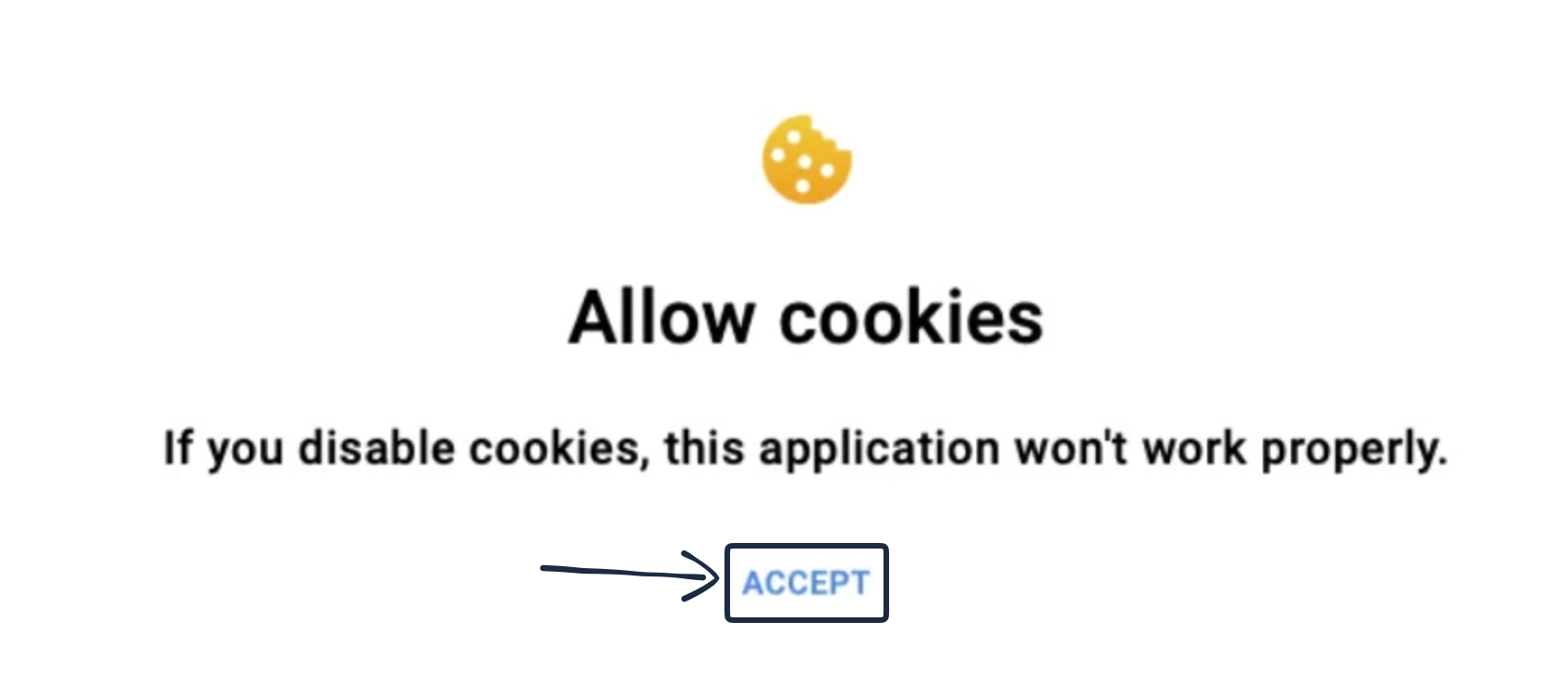
1. Click "Allow" in the pop-up that is visible.
*If it is not enough, check your general settings.* *Safari does not have separate settings for 3d party cookies, only a single setting to block all or allow all:*
2. Go to Safari >> Preferences >> Privacy.
3. Uncheck the "Block all cookies" option.
4. Restart the browser & reopen the addon.
{% endtab %}
{% endtabs %}
---
# Agent Instructions
This documentation is published with GitBook. GitBook is the documentation platform designed so that both humans and AI agents can read, navigate, and reason over technical content effectively. Learn more at gitbook.com.
## Querying This Documentation
If you need additional information that is not directly available in this page, you can query the documentation dynamically by asking a question.
Perform an HTTP GET request on the current page URL with the `ask` query parameter, and the optional `goal` query parameter:
```
GET https://docs.coupler.io/troubleshooting/coupler.io-refused-to-connect.md?ask=&goal=
```
`ask` is the immediate question: it should be specific, self-contained, and written in natural language.
`goal` is optional and describes the broader end goal you are ultimately trying to accomplish on behalf of the user. GitBook uses it to tailor the answer towards what is most useful for that goal.
The response will contain a direct answer to the question and relevant excerpts and sources from the documentation.
Use this mechanism when the answer is not explicitly present in the current page, you need clarification or additional context, or you want to retrieve related documentation sections.
**Resolution:**
1. Click "Allow" in the pop-up that is visible.
*If it is not enough, check your general settings.* *Safari does not have separate settings for 3d party cookies, only a single setting to block all or allow all:*
2. Go to Safari >> Preferences >> Privacy.
3. Uncheck the "Block all cookies" option.
4. Restart the browser & reopen the addon.
{% endtab %}
{% endtabs %}
---
# Agent Instructions
This documentation is published with GitBook. GitBook is the documentation platform designed so that both humans and AI agents can read, navigate, and reason over technical content effectively. Learn more at gitbook.com.
## Querying This Documentation
If you need additional information that is not directly available in this page, you can query the documentation dynamically by asking a question.
Perform an HTTP GET request on the current page URL with the `ask` query parameter, and the optional `goal` query parameter:
```
GET https://docs.coupler.io/troubleshooting/coupler.io-refused-to-connect.md?ask=&goal=
```
`ask` is the immediate question: it should be specific, self-contained, and written in natural language.
`goal` is optional and describes the broader end goal you are ultimately trying to accomplish on behalf of the user. GitBook uses it to tailor the answer towards what is most useful for that goal.
The response will contain a direct answer to the question and relevant excerpts and sources from the documentation.
Use this mechanism when the answer is not explicitly present in the current page, you need clarification or additional context, or you want to retrieve related documentation sections.