

Run my data flows
If you scheduled your Coupler.io data flows to automatically update your data, you might want to check the last time your data flow ran and when your data was imported.
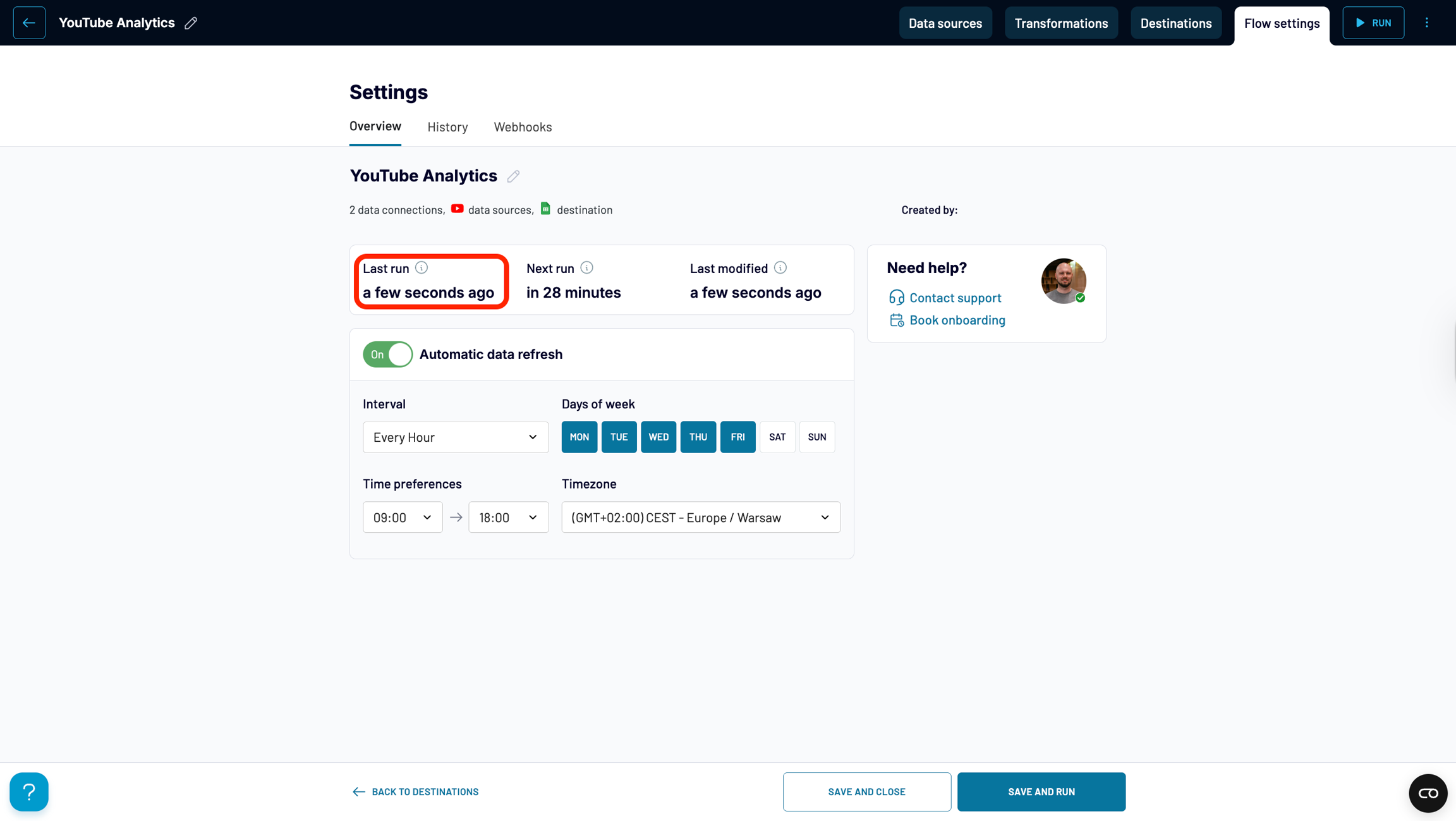
Last run - date and time when your data flow last ran, and checked whether your data source had any changes
For scheduled import: your data will be saved to the destination each run or only by source data change (depends on the "Update data each run" setting).
For manual import: Coupler.io will save data to your destination sheet each run (regardless of the settings and state of the data sources).
For imports triggered via webhook: Coupler.io will save data to your destination sheet each run (regardless of the settings and state of the data sources).
There are several places where you can get information about when your data flows last ran and when they last imported your data.
Table of contents
1. How to check the last run and last imported in Data Flow's view page
In the Data Flows list page, you can see when the last time the data flow ran and for scheduled data flows when the next run is going to happen:
If you click the 'See details' button, Data Flow's view page opens. You can find your last run date and time there:
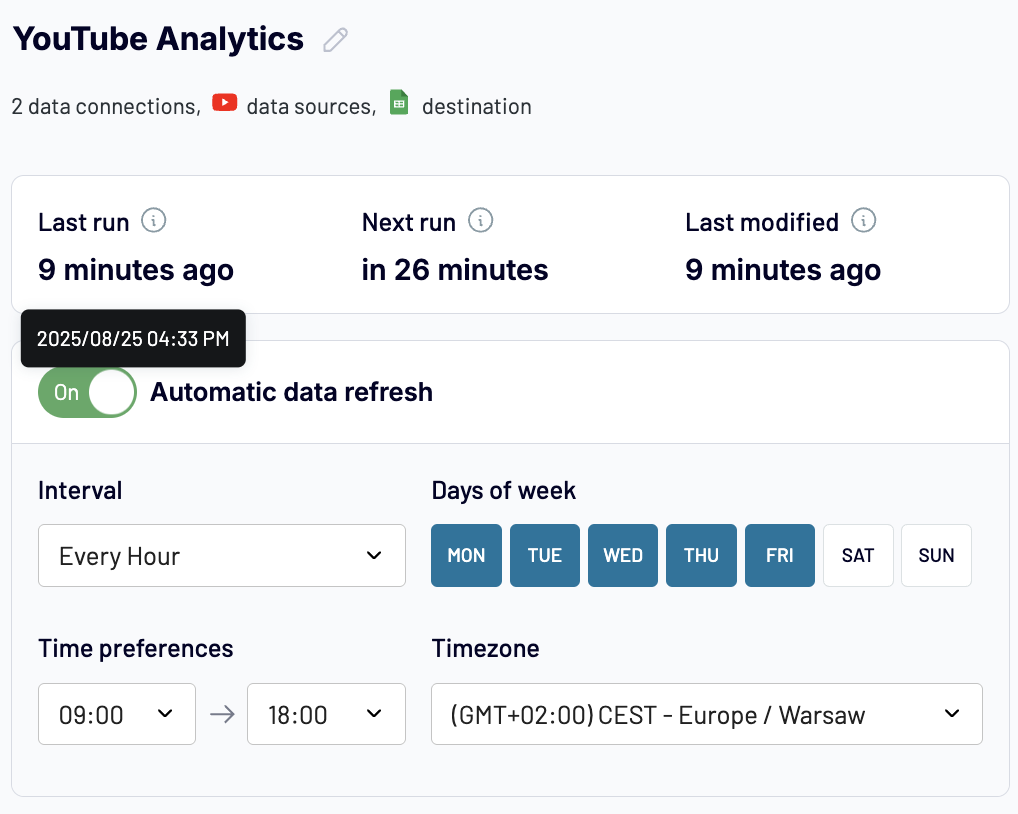
If you hover your cursor over the time, you can see the exact date and time:
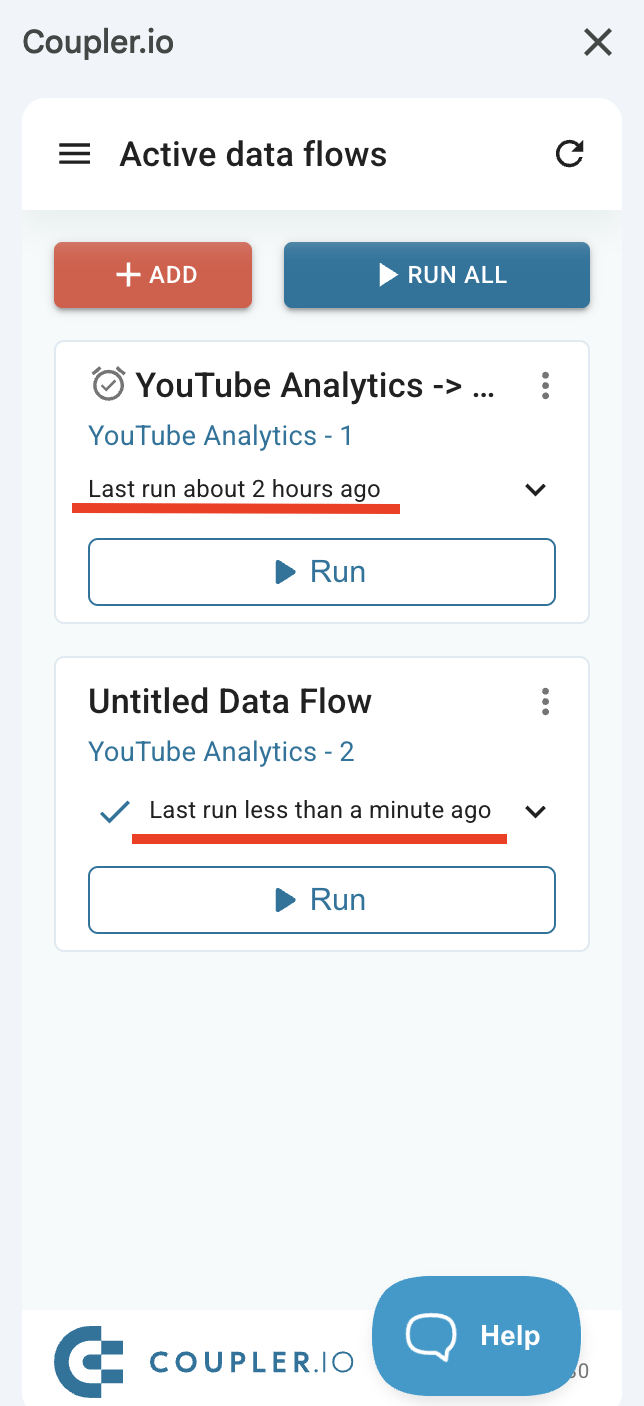
2. How to check the last run in the Google Sheets add-on
Each data flow in the add-on dashboard has the last run date and time:
If you click on the little arrow on the right side, more information is displayed:
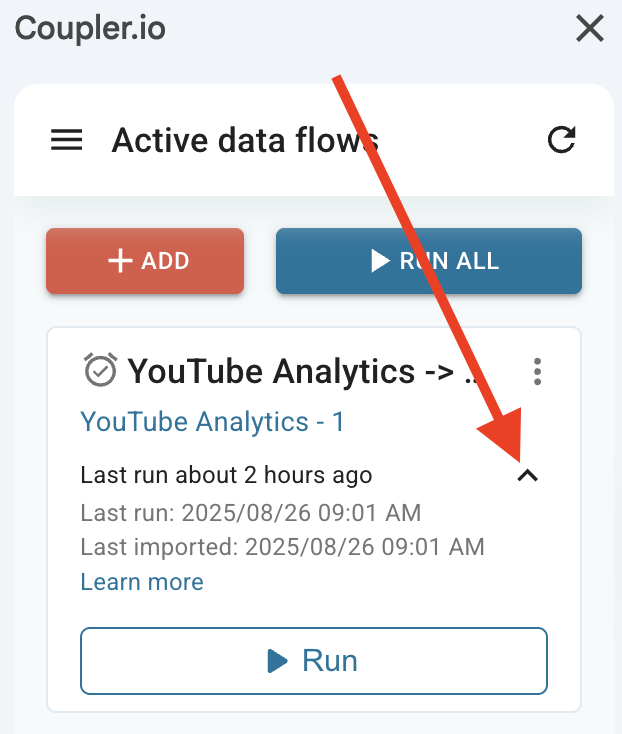
You can also see the last imported date in the first cell of the imported data:
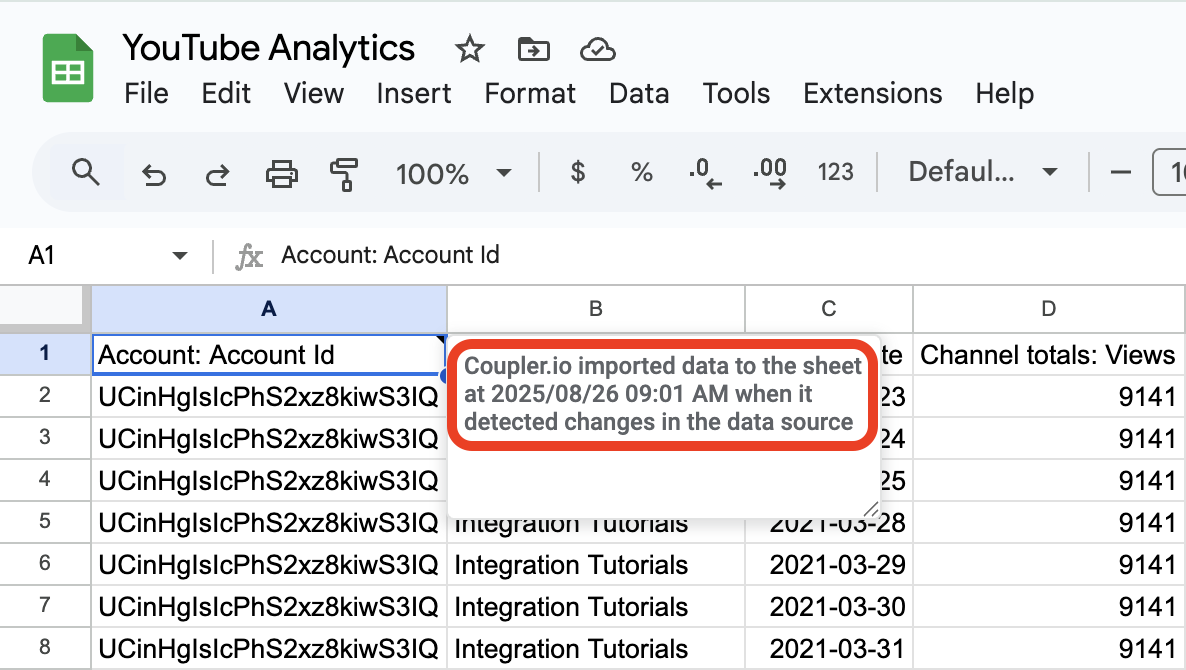
This notification is located in the first cell of your destination sheet. It specifies the date and time when data in this sheet was last updated.
Last updated
Was this helpful?