

How to get the most out of Coupler.io
We often hear that Coupler.io is a very simple platform to use. You pick a source app, complement it with a destination, and run the importer. Then in no time, you’ll have your data laid out for you, ready to dig through and use to your liking.
All of this is absolutely right. However, there’s a lot more to Coupler.io that can significantly enhance your data analytics, make your workflows more efficient, and help you extract more insights from your data. Some of the popular features on the platform include:
We’ll go through each of these features one by one. But if you’re still uncertain whether Coupler.io is something worth including in your daily workflows, have a look at the following comparison table. We look at different aspects related to data processing and compare the automated and manual approach.
Automated data workflows with Coupler.io
Manual imports and reporting
Time to set up an import
5 minutes once.
At least 5 minutes every time you import the data.
Data refresh
Set it and forget it with no additional effort.
Requires fetching data before every analysis.
Reports and dashboards building
Live dashboards with fresh data from multiple applications.
Must be populated with data every time you collect it manually for different applications.
Data sets
Already cleaned and transformed data is imported into a chosen destination.
Typically you import large files and only then process and transform data.
Data visualization
Visualizations are quickly created in Looker Studio and auto-updated according to the schedule.
Must load the fresh data manually to see the changes. Also, it takes longer to use Looker Studio directly with your sources.
Blending data
Combine data from different applications and see the full picture of your business.
Must retrieve each data source separately and blend them manually.
And now, let’s talk about the features already built into Coupler.io.
Automated data refresh
Data once imported can quickly become outdated if new records appear or the existing ones receive changes. Working with such data sets, you risk missing out on opportunities and making decisions based on incomplete information. Needless to say, you want to be sure that the data you work with is always up-to-date. And while running data imports on demand can work sometimes, you’ll save plenty of time if you automate the dull process of refreshing your data set.
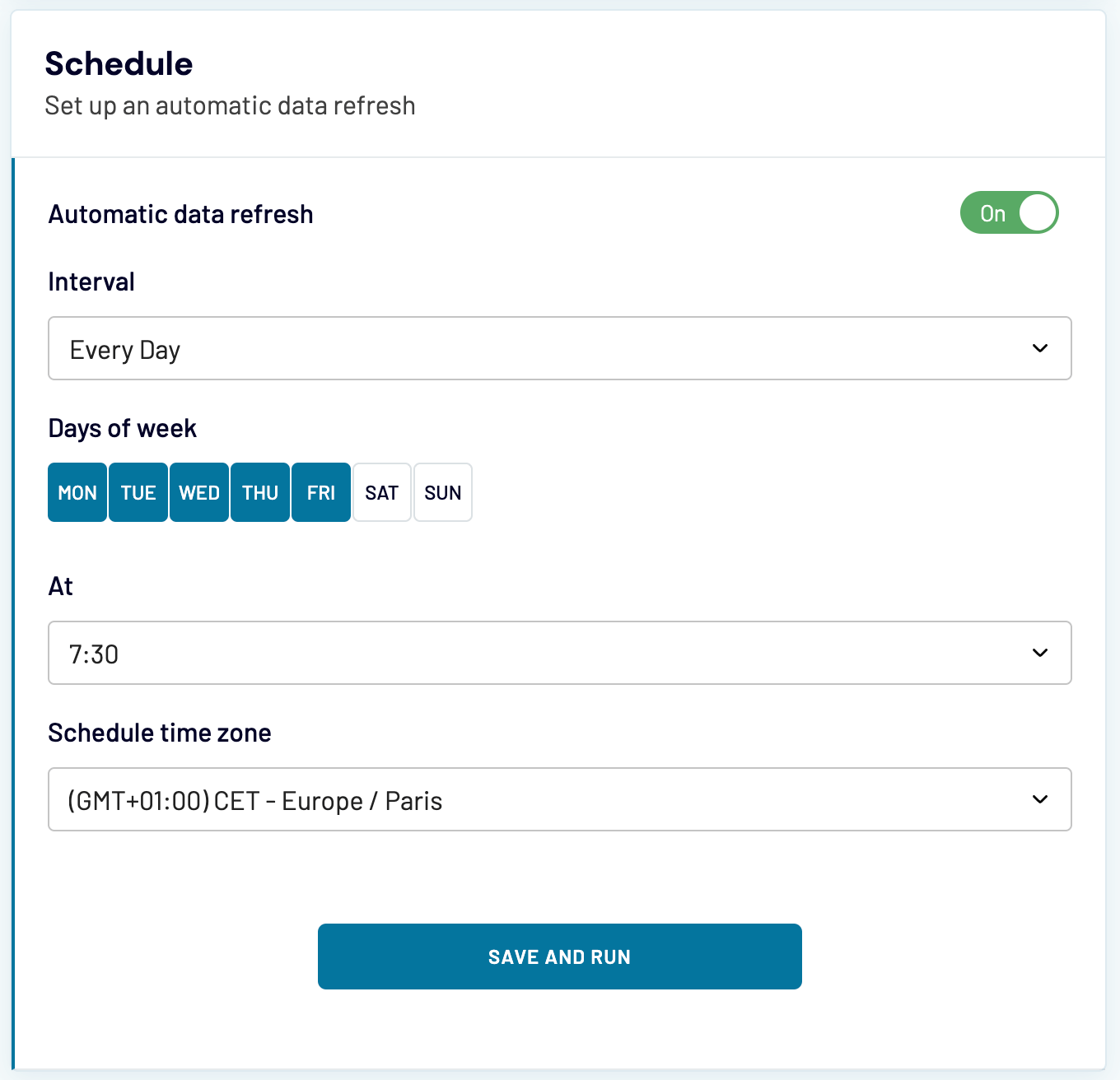
As you finish setting up a destination for your data, you have a chance to add a schedule to your importer. This will initiate a data refresh that will either append the new data to the existing set or replace what you already have with a fresh import.
The schedule is fully customizable. You can choose to run the data refresh monthly, weekly, daily, hourly, and even every 15 minutes. Pick the days of the week, choose the time range that works best for your needs, and adjust the timezone should you need to.
Read more about automatic data refresh.
Data stitching
Businesses rarely rely on a single source of data. More often, they fetch data from different apps and look for ways to combine them into meaningful datasets. For example, running online advertising, you may find yourself running ads on different platforms - Google, Facebook, Twitter, LinkedIn, etc. Each offers insights into its campaigns but you’ll have a much better overview of what works best if you combine the stats for each platform. This is when data stitching comes in handy.
Data stitching is the process of combining data sets from different sources into a single destination. You can fetch data from the same app (e.g. invoices from different QuickBooks entities) or opt for merging data from different apps (e.g. campaign stats from different advertising platforms).
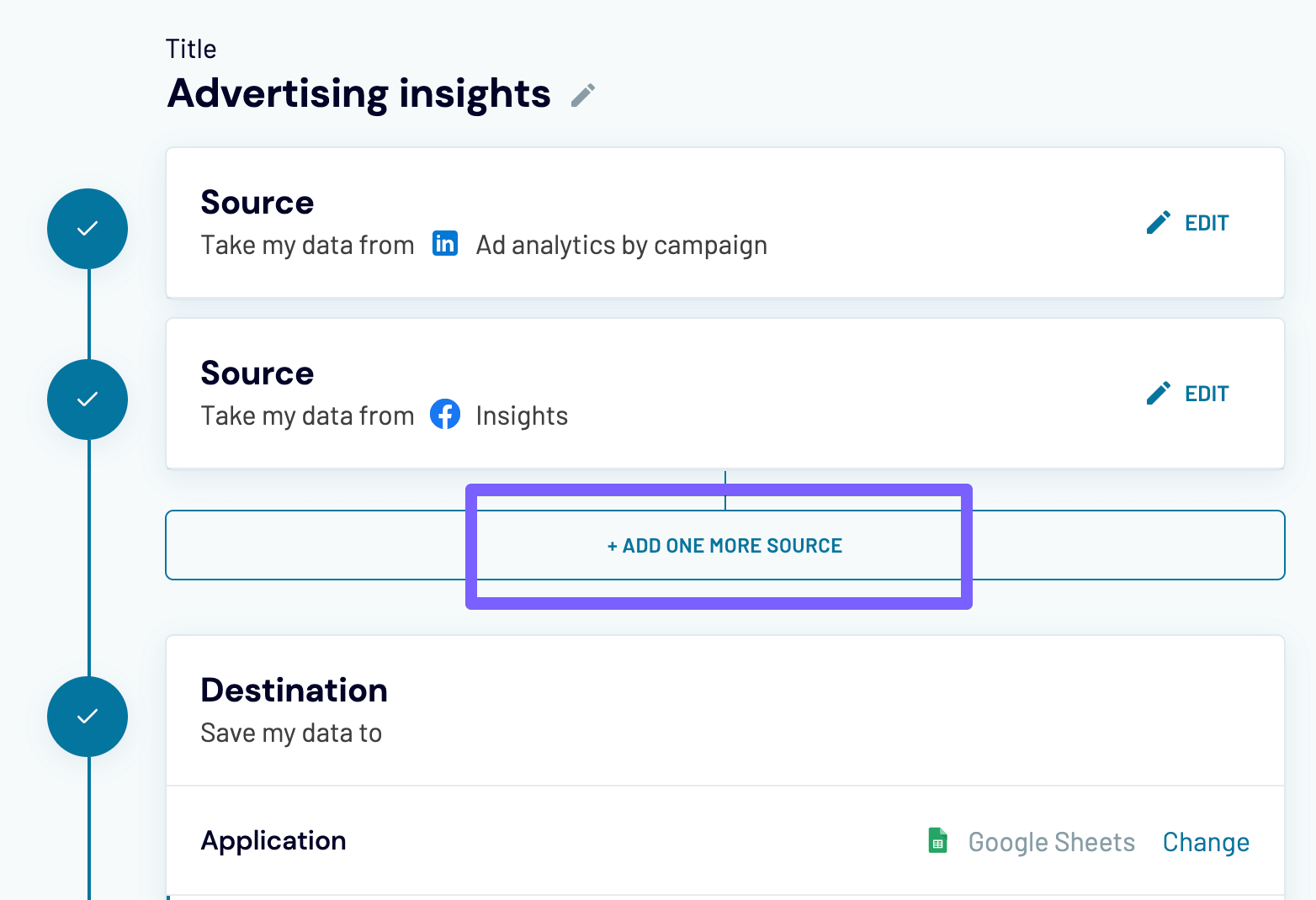
To take advantage of this feature, start setting up an importer as usual. Configure the source app but before you proceed to the destination, click the Add one more source button and set up another source. You can repeat this process as many times as you wish. When you’re finished, proceed with a destination and schedule as usual.
Read more about data stitching.
Data preview
When importing a new data entity for the first time or combining different data sets, you may feel uncertain about the exact outcome. Will you get the data you need with this particular entity? Will the filters work as expected? Will the columns be stitched in a meaningful way? To find the answers to these questions, you had to run an importer and check what the outcome was. Sometimes it would require multiple tweaks and re-runs until you got the desired outcome. The good news is that you won’t have to do all these things again.
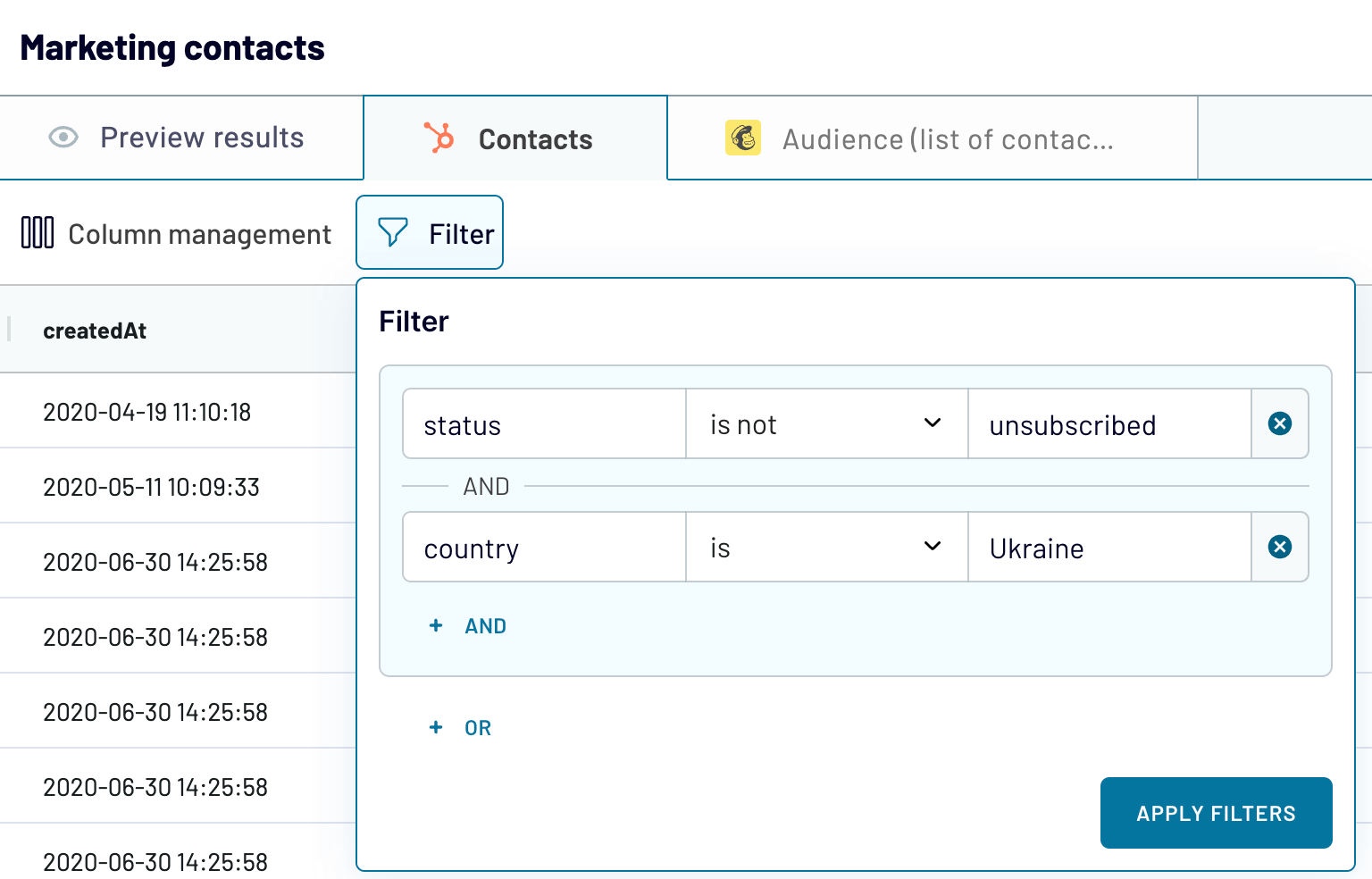
With the preview feature, you can do precisely that - preview some of the data without the need to run an importer. What’s more, you can make adjustments to the data - rename or hide columns, or even filter the results before you run an import.
To take advantage of this, add at least one source and hit the Preview data button below (the feature is currently in beta).
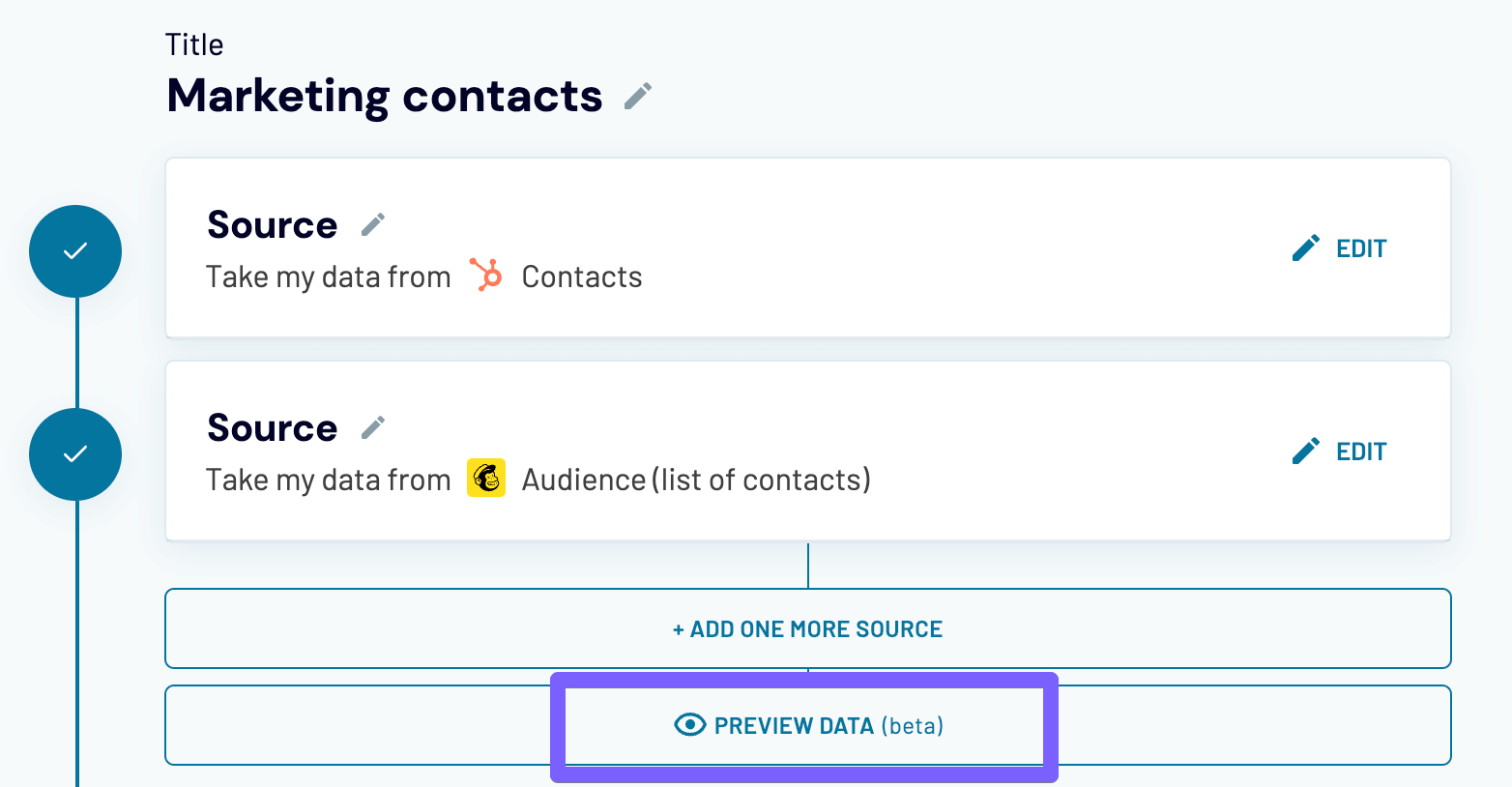
If you’re importing from a single source, you’ll see the imported data in the Preview results tab. If you’ve added multiple sources, you’ll also be able to see each data set as if it was imported separately.
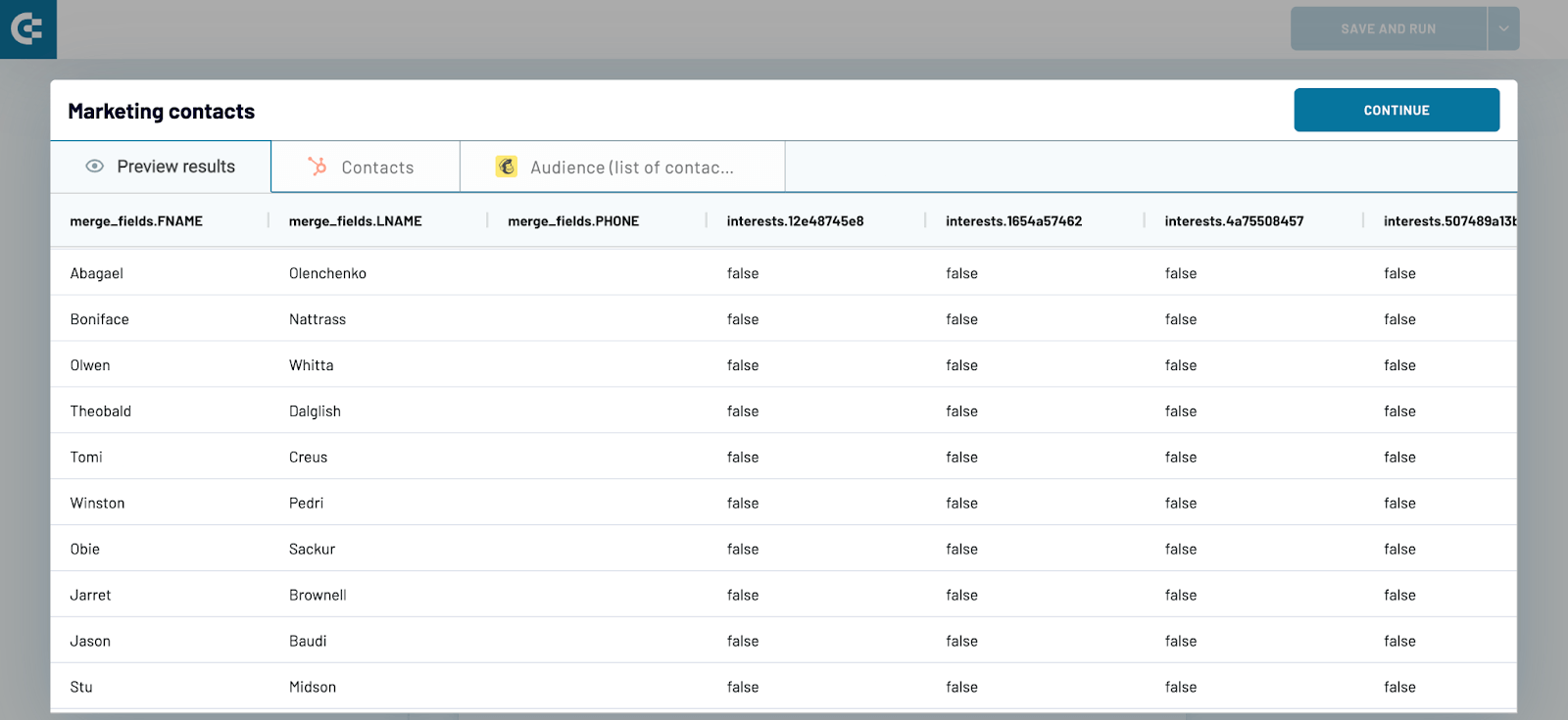
Note that columns will only combine if they have an identical name. But what if different apps use different naming conventions, which very often is the case? Using the ‘Preview’ feature, you can update the column names from either of the sources.
Here, for example, HubSpot uses a clear ‘firstname’ name for the column containing the contact’s first name. Mailchimp, on the other hand, calls an identical field ‘merge_fields.FNAME’. To unify them, open the relevant tab and hover on the problematic column. When it appears, click the hamburger menu and choose Rename. Update the name and apply the changes.
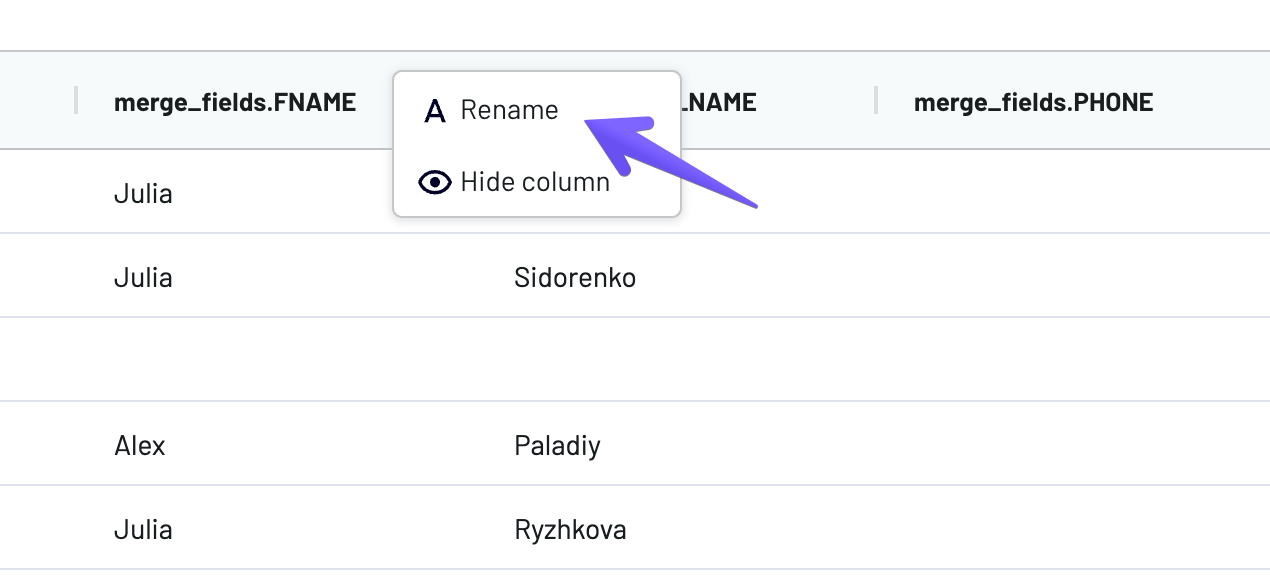
As you venture back to the joint preview, you’ll notice the data from all sources unified in a single column.
Renaming columns and hiding them can also be very useful when working with a single data source. It can help you clean up the imported data and only limit it to the columns you need, making the data ready for analysis the moment it arrives at your destination. With the filtering option, you can limit the amount of imported data, fetching only the rows that you need.
Outgoing and incoming webhooks
Importers often run in sequences. You fetch data from one or several sources and then push all or some data into another destination. As you can expect, such sequences can now be automated, and importers can run precisely when you need them to.
With webhooks, you can either launch an importer with an API request or send POST requests once an importer has finished running. Here’s how it looks in practice:
However, that’s just one of the many use cases for webhooks. You can connect Coupler.io importers to your internal workflows and, for example:
Notify your system about the importer execution status.
Refresh the data in your app (e.g. a CRM) and immediately initiate Coupler.io importer to bring that data into a spreadsheet.
Send out emails to new subscribers the moment Coupler.io loads a new batch into a spreadsheet.
To find the webhooks section, finish an importer setup and run an importer. On the final screen, scroll down to the Webhooks and Outgoing Webhooks sections. You can use the first webhook URL (Webhooks section) to initiate this particular importer. Generate a URL and add it to your API calls or as an outgoing webhook to another importer.
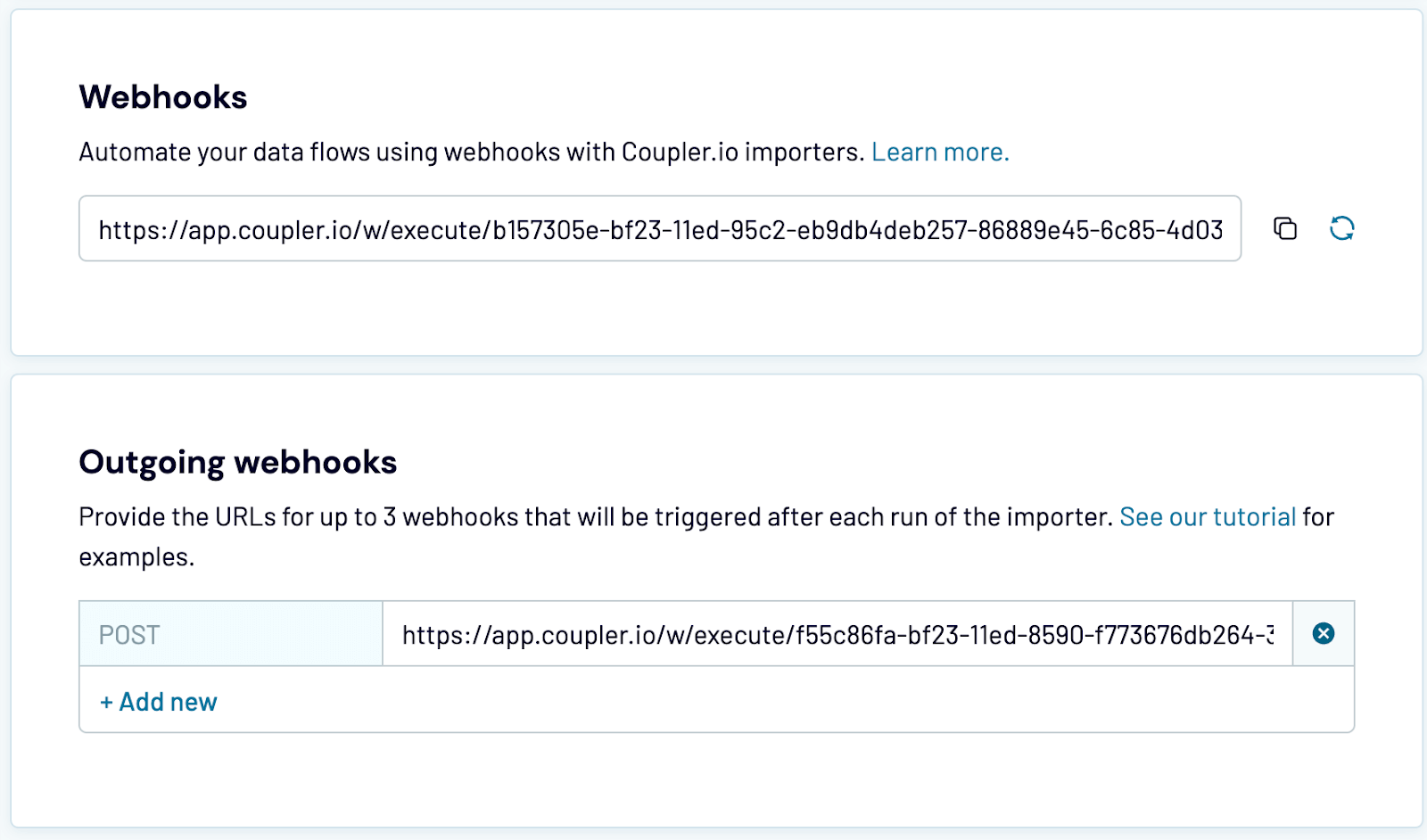
Speaking of outgoing wehbooks, they trigger POST requests the moment an importer runs (whether it runs successfully or fails). They can trigger other importers or virtually any other activity you can think of.
Connecting data to BI tools
Although spreadsheets can be used to visualize data, there are much better tools on the market for that. What many overlook is how easy it is to connect data imported with Coupler.io to the BI tools - think Looker Studio, Tableau, or PowerBI.
Thanks to the direct integration with Looker Studio, you can connect any of the supported source apps with Google’s BI tool. A connection takes just a few minutes to set up and will keep your data up-to-date while you focus on analysis. Looker Studio destination is currently available to beta users and will be launched for all users soon. Stay tuned!
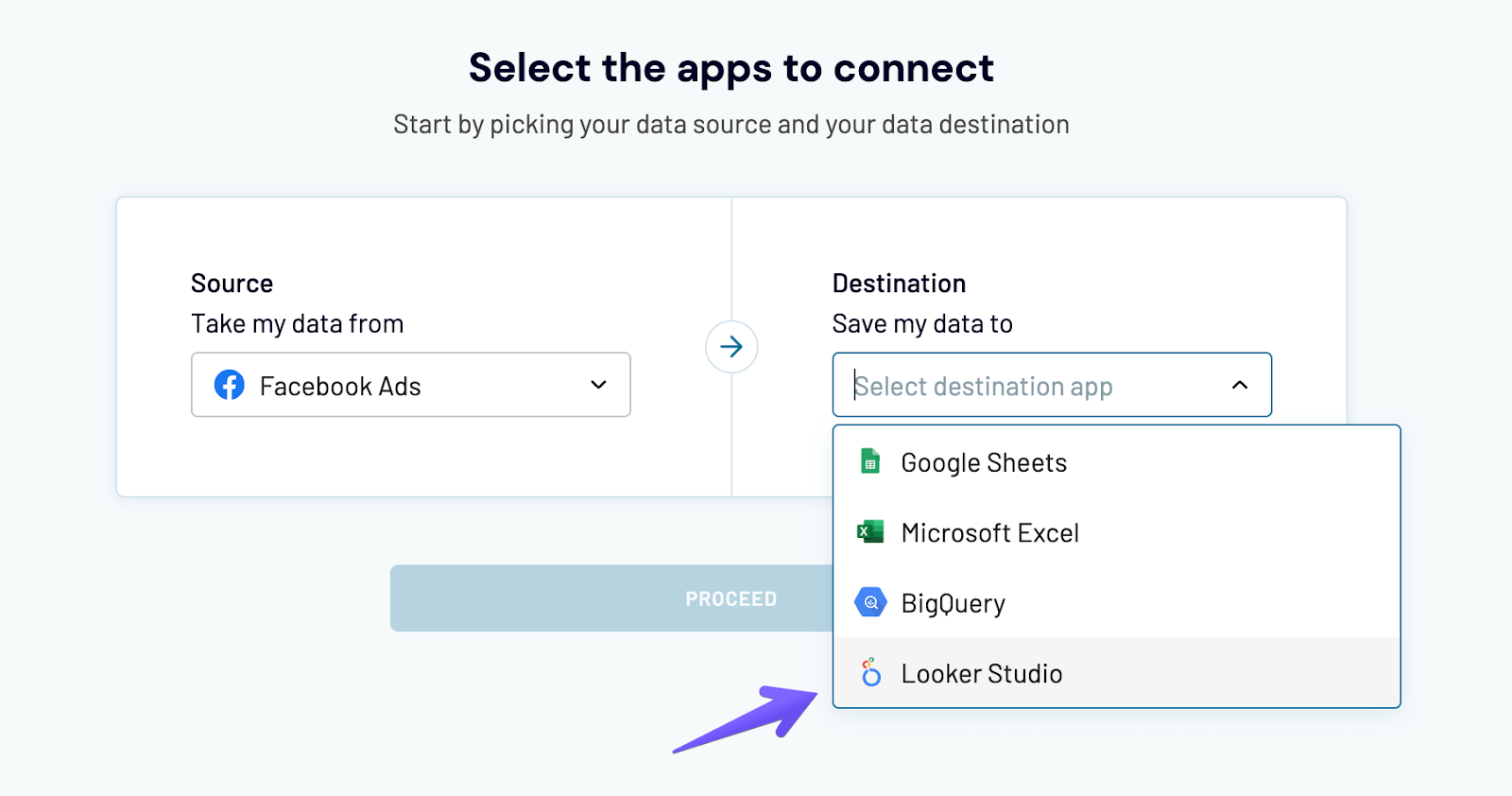
And what if you prefer to bring the data first into a spreadsheet or data warehouse and prepare it there for analysis? Well, you’ve got plenty of options:
Looker Studio integrates natively with other Google products - Sheets and BigQuery supported by Coupler.io.
Tableau integrates with Sheets, BigQuery, as well as Excel, all Coupler.io destinations.
PowerBI also has direct connections with all three apps.
Here’s a sample workflow:
You import the data from all your advertising platforms into Sheets, using Coupler.io.
Google Sheets automatically aggregates and transforms the relevant data.
Connector pulls the transformed data from Sheets and refreshes the data on charts in a BI tool of your choice.
Stay tuned as more features are coming! And if you need any help getting set up, then don’t hesitate to reach out to our friendly support team.
Take care!
Last updated
Was this helpful?